Can my kid bypass Kidfence?
Kidfence uses Apple's modern system extensions, the same APIs enterprise security tools rely on. The helper daemon, app bundle, and managed preferences live in tamper-protected paths; file permissions and an Endpoint Security watch stop a kid from deleting or editing them. App blocking uses code signatures, not app names. Renaming an app doesn't bypass it. Removing Kidfence requires the admin password, which the child doesn't have.
Can I see what they're actually doing?
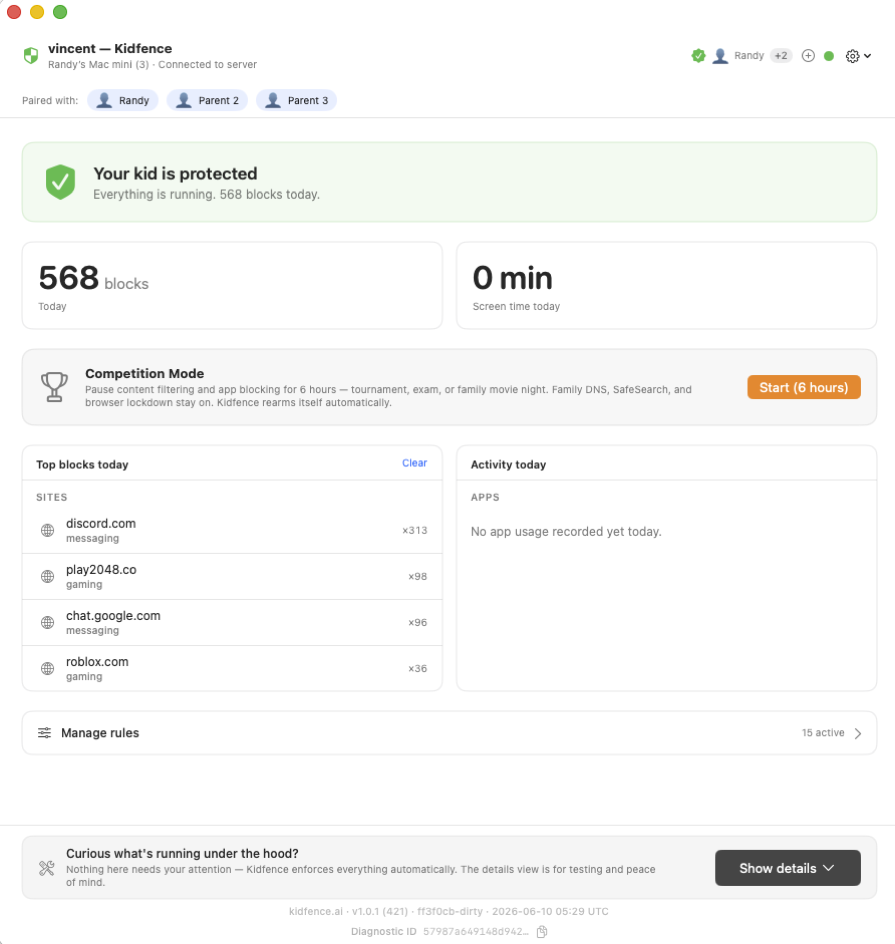
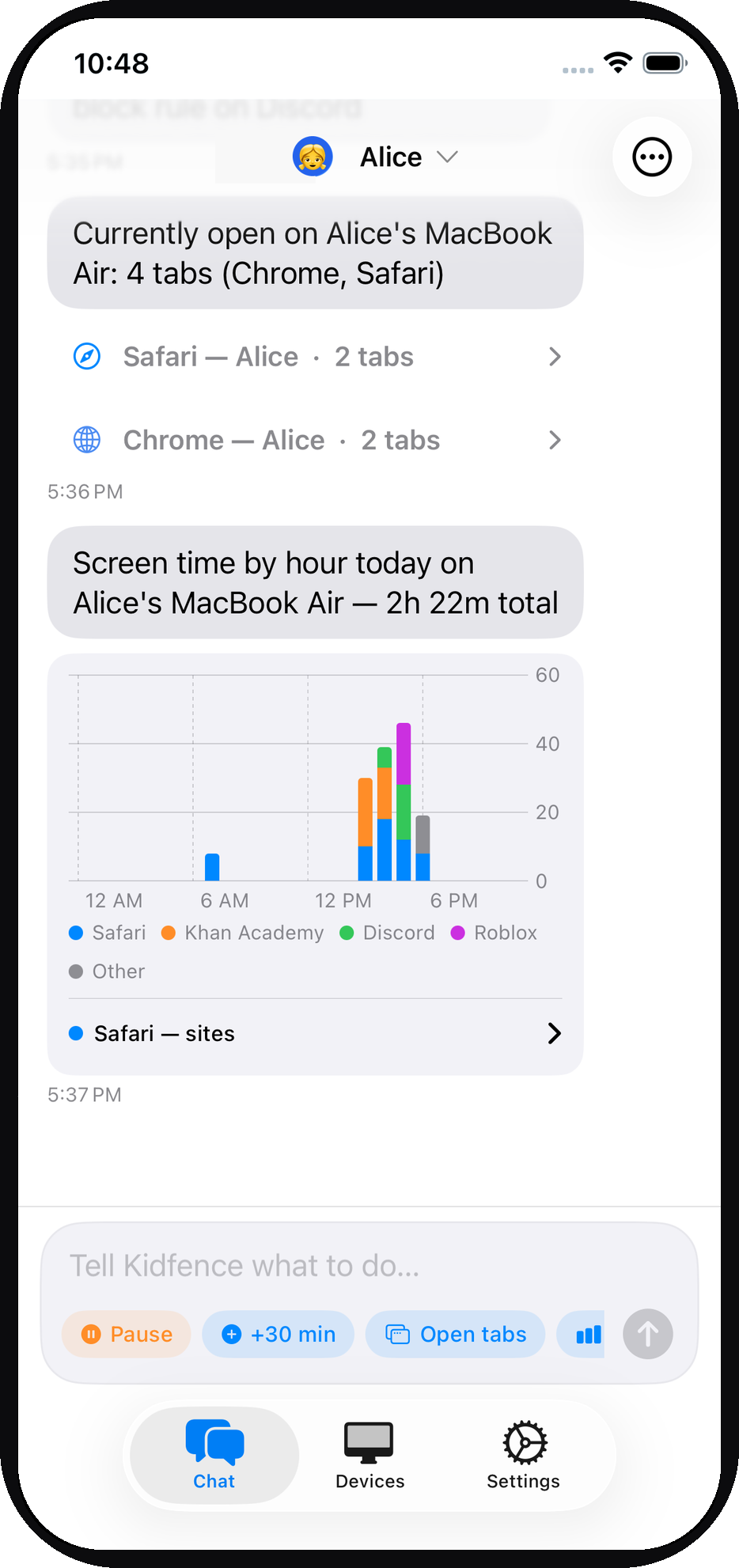
Yes. Ask "what's he on right now?" and Kidfence lists every browser tab open on the Mac, with how long they've spent on each. You also get a plain-English daily summary (top apps, top sites, blocked attempts), plus a nudge when a quick break turns into an hour on a game site. It's all generated on the Mac and end-to-end encrypted, so we can't read any of it.
What happens at bedtime, does it just lock?
When bedtime starts or the daily time budget runs out, Kidfence freezes distracting apps in place rather than force-quitting them, so nothing is lost. Schoolwork apps keep running, and everything resumes the next day. You don't have to wait for the schedule either: tap pause on your phone and the Mac pauses within seconds, with a confirmation back so you know it took effect. You can also grant 30 more minutes with a single message, or turn on competition mode to pause restrictions for a tournament; it auto-reverts on a timer.
Does Kidfence slow down the Mac?
No. Unlike VPN-based solutions, Kidfence doesn't tunnel traffic through a remote server. Content filtering happens locally via macOS Network Extensions. App blocking uses Endpoint Security, which has near-zero overhead. You won't notice any performance difference.
What macOS versions are supported?
Kidfence requires macOS 13 (Ventura) or later. The parent app requires iOS 16 or later.
Does it work with school-issued Macs?
It depends on the school's MDM configuration. If the Mac is managed by the school, their policies may prevent installing system extensions. Kidfence works best on family-owned Macs.
Can it block Google Chat? What about the chat panel inside Gmail?
Google Chat lives in two places, and they behave differently. The standalone Google Chat site and app can be blocked like any other messaging service; say "block Google Chat" and it's gone. But Google also builds the same chat into Gmail as a side panel, and that panel travels over the same encrypted connection as email itself. No network filter can block the chat half of Gmail while leaving the mail half working — not ours, not anyone's — and we won't intercept your child's encrypted traffic to try (that would mean reading everything, which we're built never to do).
Hiding the panel with a browser extension sounds like a fix, but isn't one: anyone using the Mac can switch a Safari extension off in two clicks, no admin password required. We'd rather tell you the honest boundary than ship a block that only works until your kid finds the toggle.
What works in practice: if the chat panel becomes the distraction, block Gmail itself for a stretch — "block Gmail for 2 hours" — and unblock it when it's needed for school. Your daily summary still shows how much time they spend on Gmail either way.
What about their phone?
Phones are the one place the platform owners actually do this well: when the phone is set up as a managed child account, Apple's Family Sharing and Google's Family Link are genuinely hard for a kid to disable. The catch is that most families never set it up that way. The Mac is the gap: macOS parental controls are weak and easily bypassed, and that's the problem Kidfence is built to solve. We focus on doing the Mac properly rather than doing every device half-well.
What happens when the Mac is offline?
All rules are enforced locally. App blocking, web filtering, and time limits work without an internet connection. Activity reports queue up and sync when the connection is restored.
Can I manage multiple kids?
Yes. One subscription covers your whole family, unlimited kids and devices. Each kid gets their own profile with separate rules, chat thread, and activity reports. Both parents can manage from their own iPhones.
Is my data safe?
Activity reports are end-to-end encrypted using Curve25519 keys generated on your devices. Our server relays encrypted blobs. It cannot read your child's activity data. We don't collect screenshots, keystrokes, or browsing content. Ever.
The setup profile installs a certificate. Can Kidfence read my child’s HTTPS traffic?
No. There are two very different things people call a “root certificate.” A traffic-interception CA works together with a proxy: the proxy sits between the browser and the website and presents forged certificates signed by that CA so it can read the encrypted session. The certificate in our setup profile is the other kind, a device-identity CA. During setup your Mac generates its own key and certificate request, our server signs it, and the Mac uses the result to prove it is your Mac when it talks to our management server. That is the standard mechanism of Apple’s device-management protocol, and it is the only thing the certificate is used for.
Kidfence has no proxy and no VPN, so there is nothing in the path that could decrypt anything. The web filter is Apple’s content-filter extension: it sees the server name at the start of a connection and answers allow or block, and that interface cannot read or change encrypted content. Our own servers use publicly issued TLS certificates, so the identity CA is not used to secure any connection your devices make. Details are in the privacy policy.
What is in the diagnostic logs Kidfence sends during the beta?
A technical log of what the software itself did, so we can debug problems such as a site blocked in error or a filter that stopped responding. Every line is scrubbed on the device before it is sent: user folder names, email addresses, full URLs, cryptographic keys, and website names are replaced with placeholders. The log never contains URLs, page contents, search terms, open tabs, screenshots, or anything your child typed.
Two beta exceptions we want you to know about: when a site is blocked, its domain is included so we can confirm what the filter did, and the identifier of the app in the foreground appears in status lines so we can verify the screen-time features. Logs are deleted after 14 days. The activity summaries you see in the parent app are separate and go from the Mac to your iPhone end-to-end encrypted; our server cannot read them. See Diagnostic logs in the privacy policy.
How does Kidfence categorize a site it has never seen?
Most sites are in a built-in library of known sites, so no lookup is needed. When your child reaches a site that isn’t, the Mac fetches that site’s public front page as an anonymous visitor, with no cookies and no sign-in, and keeps only the page title and its meta description. It sends those with the site name to our server, where an AI model decides the category, for example gaming, streaming, or adult.
It does not send the page your child was on, the full address, or anything they saw or entered; it can only see what any stranger visiting the front page would see. The resulting category is stored by site name alone so every family benefits, and it is not linked to your family. The snippet itself is not kept. See Site categorization in the privacy policy.