macOS 27’s new Screen Time: what Apple fixed, and the doors a Mac still leaves open
Ask to Browse, Time Allowances, and Daily Schedules shipped on September 14. They fix real complaints. On a Mac they also leave the same three doors open they always have. Here’s what changed, what didn’t, and the settings worth changing this week.
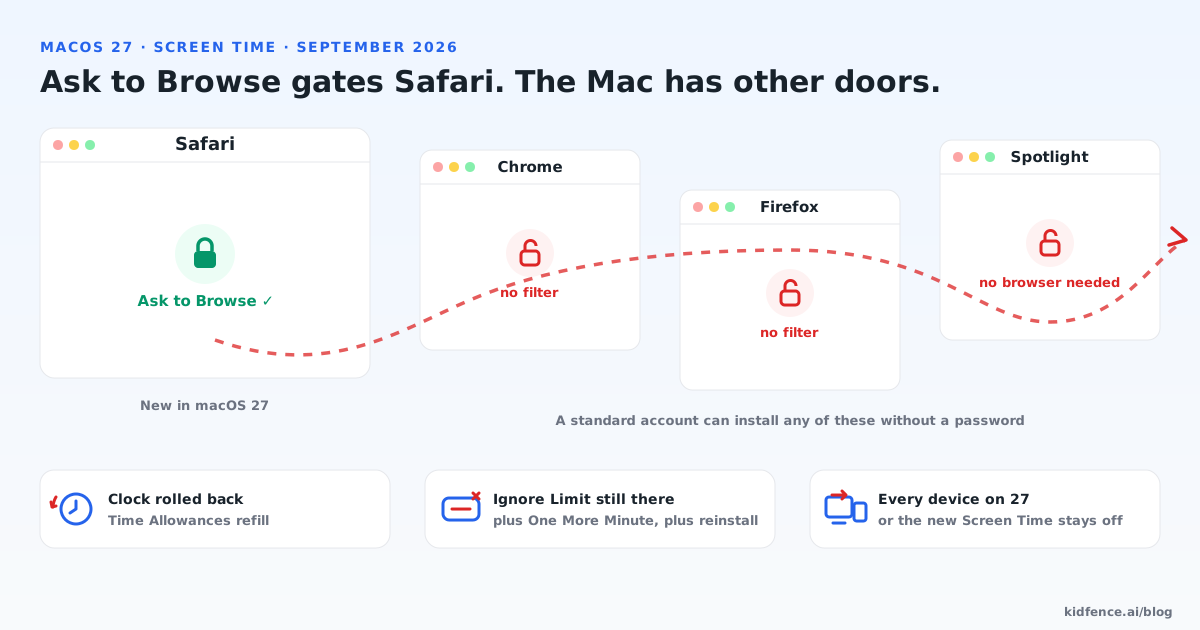
If you saw the posts this week about Apple’s new parental controls, they’re accurate. The September update to iOS 27, iPadOS 27, and macOS 27 is the biggest change to Screen Time since it launched, and most of it is aimed at complaints parents have had for years. This is a fair look at what a Mac kid gets out of it, and what a Mac kid can still walk around.
What Apple added
Ask to Browse. The web version of Ask to Buy. When a kid opens a website they haven’t been to before in Safari, the request goes to a parent, who approves or declines it in Messages. Until now the choices were an unworkable allow-list or a blunt adult-content filter, so this is the headline feature for a reason.
Time Allowances. Instead of a cap per app, parents set a daily budget across categories like Games, Entertainment, and Social Media, with age-based defaults that Apple describes as a starting point. Parents can create their own categories, move apps between them, and assign an allowance when approving a new app.
Daily Schedules. Different sets of apps at different times of day, and the sets can differ by day of the week. School-day mornings, school hours, after school. Parents can switch schedules, pause the device, or grant extra time without dismantling the rest.
The rest. New phone numbers and accounts need approval before a kid can reach them in Phone, FaceTime, or Messages. Communication Safety now detects and blocks gore and violent content, not only nudity, including in live FaceTime calls. Screen Time itself was rebuilt so changes sync across a family’s devices faster, with a simpler setup that suggests a starter set of apps for a new child account.
Two conditions come with it. Every device in the Family Sharing group has to be on the 27 releases, watches included, or the new Screen Time doesn’t switch on. And the kid needs a child Apple Account. If your kid has been using an adult Apple ID, or sharing yours, that migration comes first.
Door one: Ask to Browse is Safari
Apple’s own wording is “approval before your kids access a new website in Safari.” On an iPhone that’s close enough to everything, because every browser on iOS is a shell around Safari’s engine. On a Mac it isn’t. Chrome, Firefox, Brave, Arc, and Edge bring their own engines, and Screen Time’s web restrictions have never applied to them. Nothing in the 27 release notes changes that.
The part parents tend to miss is that a standard, non-admin account can still install any of those browsers. Drag the app into the account’s own Applications folder, or run it straight from Downloads, and it launches. No password. The App Store’s Ask to Buy never sees it, because none of them come from the App Store.
It doesn’t even need a browser. Type a web address into Spotlight and press Return: the page opens in a stripped-down preview window that Screen Time neither counts nor blocks. Link previews in Mail and Messages and any app with an embedded web view behave the same way.
Apple’s answer is to block the other browsers as apps, one at a time. That works until the next one.
Door two: the limits run on the kid’s clock
Time Allowances and Daily Schedules are evaluated against the Mac’s local date and time, the same as the old app limits and Downtime. Roll the clock back and the allowance refills. Change the time zone and the schedule shifts. This isn’t new, and it isn’t fixed: when a developer reported it on Apple’s forums last December, the response was to suggest locking the date and time settings, not a change to how limits are evaluated.
The lock works, but only if the kid can’t undo it. On a Mac that means the kid’s account has to be a standard account. An administrator can change the clock, and can change the setting that stops the clock from being changed.
Door three: app limits still ask the app to stop
Screen Time’s app blocking on the Mac hooks the app after it launches, not before. That’s why the familiar workarounds carry over unchanged. An app that starts as a background process slips past Downtime. “Block at End of Limit” is off by default, and when it’s off the kid sees an Ignore Limit button. The first limit each day offers One More Minute. Deleting an app and reinstalling it resets its counter to zero.
Time Allowances change how the budget is set. They don’t change what happens when it runs out.
What to change this week
If you’re staying on Screen Time, these five settings close most of the gap for a kid who isn’t trying very hard. None of them is on by default.
- Make the kid’s account a standard account. System Settings, Users & Groups. Keep the only administrator password for yourself. Everything else on this list depends on it.
- Turn on Block at End of Limit for every allowance and schedule. Without it, the limit is a suggestion with a button.
- Lock the clock. In Screen Time’s Content & Privacy, under Location Services, keep automatic time zone on and set Location Services to Don’t Allow Changes. Keep Date & Time on Set Automatically.
- Block the other browsers as apps, and check the Applications folder and Downloads every so often for a new one.
- Know that Spotlight opens pages. There’s no setting for this one. It’s the reason a Safari-only gate can’t be the whole answer on a Mac.
If you need every browser filtered, not only Safari, and limits that hold when the app is renamed or reinstalled, that takes enforcement below the user session: a system-wide network filter and launch-time app blocking, using the Network Extension and Endpoint Security frameworks Apple provides for exactly this. Screen Time doesn’t use them. A few third-party tools do. The longer list of Mac workarounds has four questions for testing any tool, including that one, in ten minutes.
Credit where it’s due
Ask to Browse is the right idea, Time Allowances are how most parents actually think about screen time, and Daily Schedules are what Downtime should have been from the start. On an iPhone, where Apple controls the whole stack, this update is close to the complete answer. The Mac is a general-purpose computer with other browsers, other apps, and a clock. That’s the gap, and it’s a structural one, not a bug the next point release will fix.
Sources: Apple’s release announcement, the Apple Developer Forums thread on the date-and-time bypass, and 9to5Mac’s feature rundown.
Common questions
Does Ask to Browse in macOS 27 cover Chrome or Firefox?
No. Apple describes Ask to Browse as approval before a child opens a new website in Safari, and on the Mac Screen Time’s web restrictions have never applied to Chrome, Firefox, Brave, Arc, or Edge. A standard account can install any of them without an admin password. If you stay on Screen Time, block those browsers as apps and expect to repeat that for each new one.
Can a kid still change the clock to get around Time Allowances?
If the kid’s account is an administrator, yes: Screen Time evaluates every limit against the Mac’s local date and time, and Apple’s suggested fix is a settings lock rather than a change to how limits work. Make the kid’s account a standard account, and in Content & Privacy turn on automatic time zone under Location Services and set it to Don’t Allow Changes.
Do I really need every device in the family on version 27?
Yes. Apple’s release note says all devices in a Family Sharing group must be updated to iOS 27, iPadOS 27, macOS 27, watchOS 27, and visionOS 27 to use the new Screen Time, and the child needs a child Apple Account. One device left behind keeps the family on the old Screen Time.