Parent’s guide · 2026

How kids bypass Screen Time on the Mac. And how to actually stop it.

A second account, a sign-out, a clock change — a determined kid gets around Apple Screen Time, and most paid parental controls, on a Mac in minutes. Here’s every common bypass, why it works, and what it takes to lock the Mac down for real.

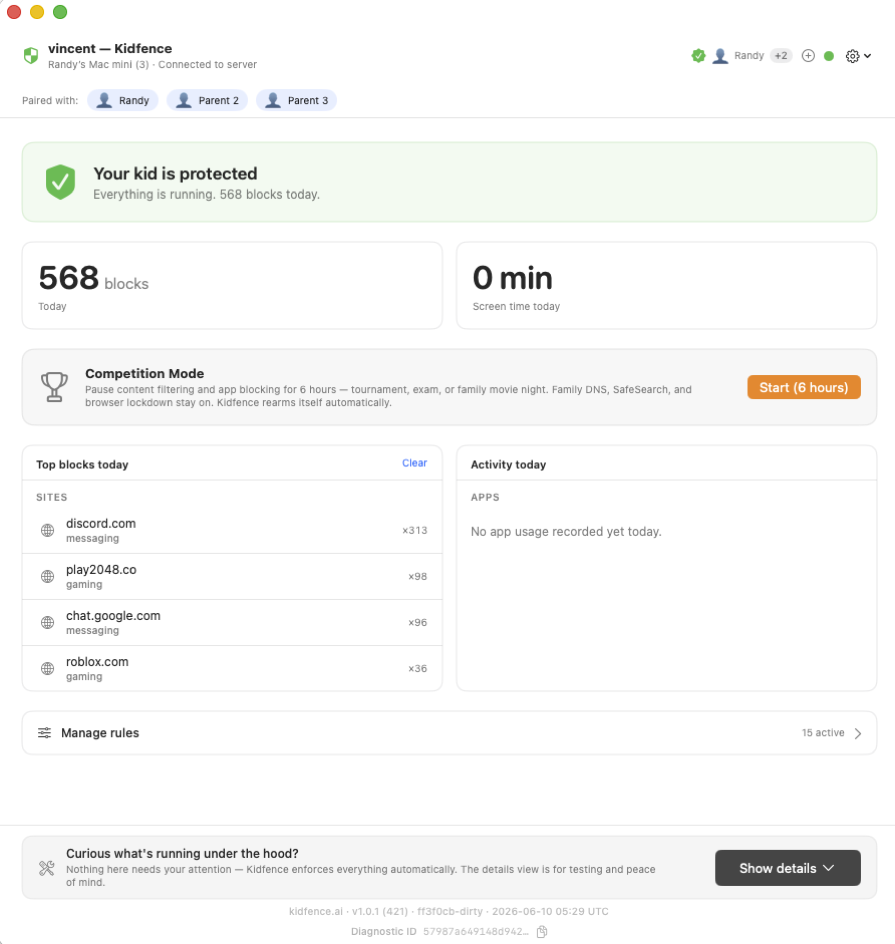
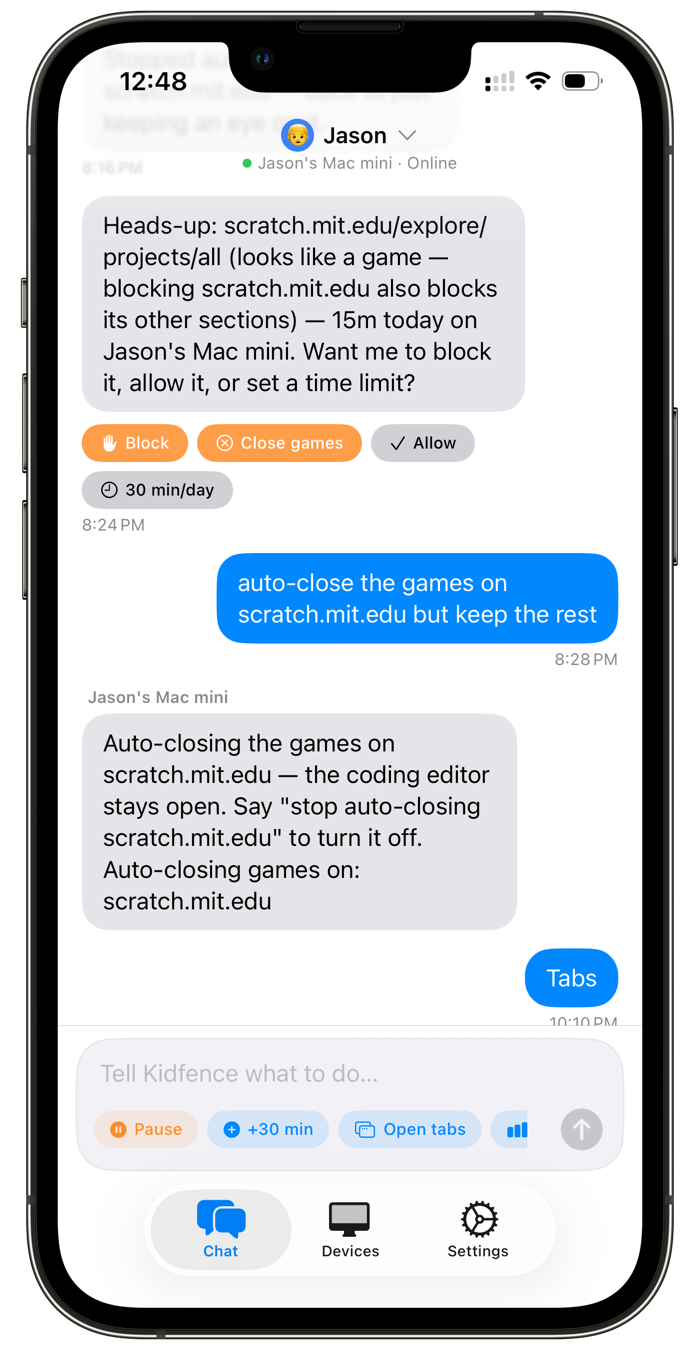
Kidfence on the kid's Mac: blocks today, top blocked sites, all protections active. The Kidfence parent app, controlling the kid's Mac by texting in plain English.

If you’ve set up Screen Time on your kid’s Mac and it still feels like nothing changed, you’re not imagining it. The Mac is the weak spot in almost every parental control: the phone tools are mature and free, but the Mac client is usually an afterthought — a ported phone app, a per-account setting, or a network filter a kid can step around without much effort.

And they do. On the App Store, the kids’ companion apps for the major parental controls sit at one to two stars — Qustodio’s kids app around 2.2, Bark’s around 1.3, from thousands of ratings — and a good share of those reviews are kids openly swapping ways to defeat them. One even walks other kids through it step by step:

“Kids, if you have a Mac device install Apple Configurator from the App Store and set your device with a profile that prevents it from being downloaded.”

— a 1★ review of a major parental-control kids app, App Store

None of what follows is a secret — kids trade these in group chats and on forums already. The point of listing them is the opposite: once you can see exactly how a control gets bypassed, you can tell whether the tool you’re using (or about to pay for) actually closes the gap, or just looks like it does.

The seven ways kids get around it on a Mac

Roughly in order of how often they show up. For each one: how the kid does it, why it beats most tools, and what it takes to actually stop it.

1

Create a second account

They add a new standard or admin user in System Settings and log into a clean, unmanaged desktop. Apple Screen Time and most ported apps are enforced per account, so the one you set up simply doesn’t apply here.

What actually stops it: enforcement from a system-wide background service that covers every account on the Mac — plus a locked second-account setup where the kid never holds the admin password.

2

Sign out of the Apple ID

Screen Time and Family Sharing hang off the child’s Apple ID. Sign out — or switch to a different Apple ID — and the limits leave with it.

What actually stops it: control that doesn’t depend on the Apple ID at all, and enforces locally on the device no matter who’s signed in.

3

Change the date & time

Downtime starts at 9pm? Roll the clock back to 8. A lot of schedulers, Screen Time included, read the system clock, so moving the date forward or back lifts the limit.

What actually stops it: a schedule enforced by a service that ignores the user-set clock, and a web filter that stays on regardless of the time.

4

Quit or uninstall the app

A parental control that runs as an ordinary app can be force-quit from Activity Monitor or dragged to the Trash. Some reinstall a previously-approved app, or use a configuration profile trick, to get around a block.

What actually stops it: a privileged background service (not a quittable app window) that blocks apps at launch by signature — so a re-download or rename doesn’t change the outcome.

5

Download a different browser

The filter watches Safari and Chrome, so the kid installs Firefox, Brave, or Arc — or opens a private/incognito window — and browses filter-free.

What actually stops it: blocking unauthorized browsers by code signature and disabling private/incognito browsing, so there’s no unfiltered path.

6

Turn on a VPN or web proxy

A free VPN or a web-proxy site tunnels straight past a DNS or content filter. Ironically, tools that filter using their own VPN can often just be switched off in Settings — and when their VPN breaks, so does the kid’s internet.

What actually stops it: filtering at the Network Extension layer (no tunnel to toggle), while proxy and VPN apps are themselves blocked.

7

Rename the app

Blockers that match on filename are beaten by renaming Roblox.app to Homework.app. The game launches; the block looks for a name that no longer exists.

What actually stops it: matching on the app’s code signature, not its filename, so renaming changes nothing.

Why most tools miss all seven

Notice the pattern: nearly every bypass works because the control lives inside the user’s session — a per-account setting, an app the user can quit, a filter tied to one Apple ID or one browser. Anything a standard user can do (add an account, sign out, change the clock, install a browser) is enough to step outside it.

That’s not a knock on any one product; it’s a consequence of building a Mac client as an afterthought to a phone app. And it shows up in the reviews — not just from kids, but from parents whose filter got in the way of the actual computer:

“I’m connected to the VPN and still Safari will not load anything. It says I’m not connected to the internet.”

— a 1★ review of a VPN-based parental control, App Store

Closing all seven takes a different foundation: enforcement that runs below the user session, as a privileged system service, using the same macOS frameworks Apple built for exactly this — Network Extension for web filtering and Endpoint Security for app control. That’s the design Kidfence starts from.

Every account System-wide, not per-user
Survives sign-out No Apple ID dependency
By code signature Rename & reinstall don’t help
No VPN to toggle Filters at the OS layer

Already paying for one that doesn’t hold up?

If you bought Qustodio, Net Nanny, or another app and your kid still walks around it on the Mac, you don’t owe it a renewal. Two honest notes for switchers:

Cancel first, so you’re not double-billed. If you subscribed on the vendor’s website, cancel under your account’s billing settings and follow up by email if charges continue — web-billed cancellations are a common complaint, so keep a record. If you subscribed through the App Store, it’s one tap under Settings → your name → Subscriptions. Kidfence bills through Apple for exactly this reason: you can cancel it the same one-tap way, any time.

See the Mac-by-Mac difference before you switch. We keep an honest, side-by-side breakdown of what each option covers on macOS: Kidfence vs Qustodio, vs Net Nanny, vs Apple Screen Time, or the full buyer’s guide.
Common questions

Can a kid bypass Kidfence with a second account?

No. Kidfence enforces from a system-wide background service, so its rules apply to every account on the Mac — including a brand-new one. During setup the Mac is configured with a separate admin account whose password the kid never has, so they can’t create an unmanaged account or disable the service in the first place.

Does changing the date and time get around it?

No. Kidfence’s schedules and limits are enforced by its background service rather than the user-set clock, and web filtering, DNS, and app blocking stay on regardless of the time. Moving the clock doesn’t lift anything.

What about a VPN, a proxy site, or a different browser?

Kidfence filters at the Network Extension layer, so there’s no VPN of its own to switch off, and it blocks VPN and proxy apps as well as unauthorized browsers (Firefox, Brave, Arc) by code signature, with private/incognito disabled. There’s no unfiltered path left open.

How do I actually cancel Qustodio or Net Nanny?

If you subscribed on the vendor’s website, sign in and cancel under your billing/subscription settings, then follow up by email if the charge continues. If you subscribed through the App Store, cancel under Settings → your name → Subscriptions on your iPhone. Do it before switching so you’re not double-billed during your Kidfence free trial.

Lock the Mac down for real

Start on your iPhone; it walks you through the Mac setup in about 10 minutes. 14-day free trial, no card, cancel anytime.